
I keep around an old windows XP virtual machine for things like CV's that agents will only take in word format, and I haven't been bothered to change it over to Google docs yet, but I will. So this VM gets powered up now and again on my Ubuntu Desktop to do this one task, and then it gets put away again.
So I thought I would take the Windows 7 7100 build for a spin and try it in VirtualPC, as I had already built a test VMware one. Well, the install went pretty well and once it had rebooted I was sat with an empty desktop, with no applications again. I fired up IE8 so I could download Mozilla Firefox, and it forced me to go to the Microsoft home page. I then downloaded some anti-virus software - AVG - and installed the Virtual PC drivers, another reboot.
I finally installed all the Microsoft patches and another reboot. It must have taken me about 45mins in total, to end up with a working virtual instance, and all I had installed was a browser and the anti-virus. Now that's OK, as I will put on my copy of Office, and I can continue to edit those CV's, but I then got to thinking about the point of this.
With virtualization and the standard hardware reference model that you get, I don't ever need to upgrade my XP virtual image, and it will continue to work until I can be bothered to move it to Google Apps. I know you won't be able to get security updates etc, but then I don't use it for seriously surfing the web anyway. I can also run it with no network connected if I wanted, and isolate it from the outside world , simply for it's legacy value.
So the question here is, why would I possibly spend £200 on Windows 7, the answer is I won't. When the RC runs out next year, then I will just delete the VM and that might be the driver I need to move over to Google apps completely.
I think a lot of people need to think very hard about upgrading to Windows 7, it might be new and shiny, but what exactly are you getting for you hard earned money. In my opinion not a great deal. Especially when you could go and buy a brand new Acer Netbook for £149 with all the software you could want, and spend the rest on treats for yourself.
Showing posts with label VMware workstation. Show all posts
Showing posts with label VMware workstation. Show all posts
Thursday, 23 July 2009


Wednesday, 15 July 2009
I'm very impressed with VirtualBox 3.0.2

I have been using VMware workstation since before version one, and it has always served me well up until now. I have started to read lots of good articles on how good Sun Microsystems latest release of Virtualbox has become, so I decided to download it and give it a whirl. Well I can also add my thumbs up to version 3, as this product has moved on extensively since I last tried it.
The migration of some of my older VMware virtual machines was painless, and building a new Windows 7 virtual image was fast and every bit as painless as using VMware Workstation 7 beta.
The suspend and resume is much faster with this version than the latest VMware release, though VMware does have debug mode switched on which might account for some of that. I also really like the seamless mode, which allows you to show just the start bar from Windows and the currently running apps. This works very efficiently, and again I prefer it to the Unity mode in VMware.
Another enormous benefit is that it is free, in both price and spirit, VMware workstation is $200, and the development community behind the project are working towards interoperability with other virtualization methods with makes your virtual images more portable and flexible.
Well, I certainly won't be dropping my VMware just yet, but I'm using this new release more and more, and if it continues to impress, then I suspect it will become my preferred desktop virtualization product.
Get it here Virtual Box
Monday, 13 July 2009
Increasing the boot disk size on a VMware virtual machine
I'm sure you have created some virtual machines for testing or doing some temporary work, and then found them still being useful a good while later. The only problem is that the sizes you picked for the virtual machine disks was not ideal. Well, increasing a lot of settings on a VMware virtual machine are relatively easy, but increasing the boot disk takes a little more work. As always make a backup of you virtual machine before starting as a mistake will truely foobar your virtual disks.
For this example, I'm using an old legacy XP virtual image that I'm currently using to test the beta versions of Firefox and chromium.
The step is to increase the size of the disk from the command line. The following command took the primary partion from 2GB to 10GB.
nick@nick:~/vm/Windows XP$ vmware-vdiskmanager -x 10GB "Windows XP Professional.vmdk"
Grow: 100% done.
Disk expansion completed successfully.
WARNING: If the virtual disk is partitioned, you must use a third-party
utility in the virtual machine to expand the size of the
partitions. For more information, see:
http://www.vmware.com/support/kb/enduser/std_adp.php?p_faqid=1647
Once you have increased the size of the virtual physical disk, we now need to increase the partition and the NTFS filesystem on that partition. You could rush out an waste £80 of your hard earned money on a product like Partition Magic, or you can follow my simple guide and do it for free.
Step 1: Download a copy of the linux partition and filesystem manipulation software Parted Magic, make sure you download the iso file. Afterwards I would recommend leaving a donation for the developers hard efforts.
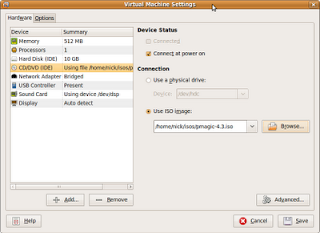
Step 2: Using VMware workstation, edit the settings for you virtual machine to now boot from the newly downloaded iso like this:
Step 3: Select the live CD boot option, or if you have set your VM with enough RAM you can select the RAM option:

Once the ISO has booted you will end up at a screen like this
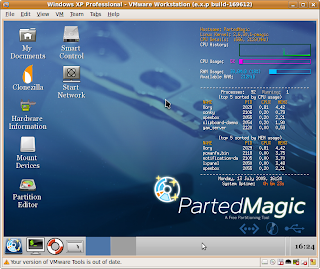
Step 3: Now click on the Partition Editor icon , and you will end up with a screen that looks like this.
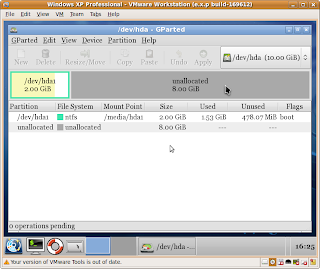
Click on the resize button, and select the whole of the disk, so this will grow the partition and filesystem to include the whole of your newly expanded disk. You can then watch the resizing process like this:
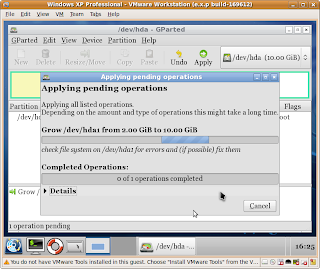
Once this has finished, you can re-boot your virtual machine, and you will have a nice new 10GB disk, where before it was a 2GB disk.
For this example, I'm using an old legacy XP virtual image that I'm currently using to test the beta versions of Firefox and chromium.
The step is to increase the size of the disk from the command line. The following command took the primary partion from 2GB to 10GB.
nick@nick:~/vm/Windows XP$ vmware-vdiskmanager -x 10GB "Windows XP Professional.vmdk"
Grow: 100% done.
Disk expansion completed successfully.
WARNING: If the virtual disk is partitioned, you must use a third-party
utility in the virtual machine to expand the size of the
partitions. For more information, see:
http://www.vmware.com/support/kb/enduser/std_adp.php?p_faqid=1647
Once you have increased the size of the virtual physical disk, we now need to increase the partition and the NTFS filesystem on that partition. You could rush out an waste £80 of your hard earned money on a product like Partition Magic, or you can follow my simple guide and do it for free.
Step 1: Download a copy of the linux partition and filesystem manipulation software Parted Magic, make sure you download the iso file. Afterwards I would recommend leaving a donation for the developers hard efforts.
Step 2: Using VMware workstation, edit the settings for you virtual machine to now boot from the newly downloaded iso like this:

Step 3: Select the live CD boot option, or if you have set your VM with enough RAM you can select the RAM option:
Once the ISO has booted you will end up at a screen like this

Step 3: Now click on the Partition Editor icon , and you will end up with a screen that looks like this.

Click on the resize button, and select the whole of the disk, so this will grow the partition and filesystem to include the whole of your newly expanded disk. You can then watch the resizing process like this:

Once this has finished, you can re-boot your virtual machine, and you will have a nice new 10GB disk, where before it was a 2GB disk.
Wednesday, 13 May 2009
What on earth is all this fuss about Windows 7
I have just download and installed into a VMware virtual machine the RC version 7100 of windows 7. The funny thing is that VMware thought it was Vista, and selected all it's default settings as if it was.
Now I only keep a virtual machine copy of windows around for legacy apps, so it doesn't play much of a role in my IT life, but I would like it to be as fast as possible and to work with VMware as seamlessly as it possibly can.
I have to say , having tried Vista in a virtual machine, and deleting it within hours of it's install due to it being completely unusable, I didn't hold out much hope for Windows 7. In it's defence it certainly runs significantly faster than Vista with the same amount of virtual resources: 1GB RAM, 16GB Disk, 1 processor.
My problem is though, it looks just like Vista, and with a default install appears to offer nothing over my XP SP3 virtual machine. Now I have only just installed it, and I may find some killer feature down the line, but after 2 days of having a good look around it , my opinion would be that it's on the surface XP with a new theme. Now hopefully there has been a lot of good coding underneath to make it more secure, and I have noticed it has copied Linux in that it now requires a positive affirmation before it installs new apps, which is good.
I will keep it on my machine and do some more testing, and I'm going to install it onto a USB key so I can test it on my Asus 1000 netbook if it will install on a flash drive. I certainly won't be buying a copy as XP does exverything I need for a very rarely used legacy app support system, by I was expecting an awful lot more from this OS considering the hyperbole that has been flying around the blogosphere and the web.
This product would certainly never offer a platform that would make me switch from Linux as my default platform, as you get so many apps straight out of the iso, why would I want to waste hundreds of pounds on software , and spend time installing it.
The biggest problem for any IT literate person is the amount of time you are going to have to spend installing apps just to make it vaguely useful: Chrome, Firefox, Anti-virus, Openoffice etc etc etc - just name your favourite app. here. No, this in my opinion is definitely nothing to get excited about.
The virtualization offering is also a complete mess with this release. What other OS requires you to download a completely separate product , once you have downloaded and installed the OS? Then it will only install on specific versions, and it will only offer support for another Microsoft OS? Great for large companies, but naff all use to anyone else. You would be much better of installing Virtual box or Vmware workstation and getting the real deal, or better still, just installing Linux and have it all built in from the start. This is complete nonsense from Microsoft, they should have built a proper hypervisor in from the ground up, and is yet more proof this is nothing more than Vista II.
Now I only keep a virtual machine copy of windows around for legacy apps, so it doesn't play much of a role in my IT life, but I would like it to be as fast as possible and to work with VMware as seamlessly as it possibly can.
I have to say , having tried Vista in a virtual machine, and deleting it within hours of it's install due to it being completely unusable, I didn't hold out much hope for Windows 7. In it's defence it certainly runs significantly faster than Vista with the same amount of virtual resources: 1GB RAM, 16GB Disk, 1 processor.
My problem is though, it looks just like Vista, and with a default install appears to offer nothing over my XP SP3 virtual machine. Now I have only just installed it, and I may find some killer feature down the line, but after 2 days of having a good look around it , my opinion would be that it's on the surface XP with a new theme. Now hopefully there has been a lot of good coding underneath to make it more secure, and I have noticed it has copied Linux in that it now requires a positive affirmation before it installs new apps, which is good.
I will keep it on my machine and do some more testing, and I'm going to install it onto a USB key so I can test it on my Asus 1000 netbook if it will install on a flash drive. I certainly won't be buying a copy as XP does exverything I need for a very rarely used legacy app support system, by I was expecting an awful lot more from this OS considering the hyperbole that has been flying around the blogosphere and the web.
This product would certainly never offer a platform that would make me switch from Linux as my default platform, as you get so many apps straight out of the iso, why would I want to waste hundreds of pounds on software , and spend time installing it.
The biggest problem for any IT literate person is the amount of time you are going to have to spend installing apps just to make it vaguely useful: Chrome, Firefox, Anti-virus, Openoffice etc etc etc - just name your favourite app. here. No, this in my opinion is definitely nothing to get excited about.
The virtualization offering is also a complete mess with this release. What other OS requires you to download a completely separate product , once you have downloaded and installed the OS? Then it will only install on specific versions, and it will only offer support for another Microsoft OS? Great for large companies, but naff all use to anyone else. You would be much better of installing Virtual box or Vmware workstation and getting the real deal, or better still, just installing Linux and have it all built in from the start. This is complete nonsense from Microsoft, they should have built a proper hypervisor in from the ground up, and is yet more proof this is nothing more than Vista II.
Sunday, 5 April 2009
Ubuntu 9.04 on my Dell XPS 1330 - A fine combination
I have been installing this version of Ubuntu from the early Alpha releases to help with testing on all the various machines that I use on a daily basis, including several virtual servers. I think some of the biggest changes in this release are on the server version, but I'm talking about the desktop release in this post.
My Asus Eeepc 1000 really likes this version, and I have been running that from an SD card for over a week now without any issues, so I thought it about time to upgrade my other laptop.
I decided to upgrade my Dell on the way into work the other morning, and the install was completely painless and without a single hitch. That in itself was interesting, I selected the "update-manager -d" approach , and once all the files were download onto the laptop, I just closed the lid and put it in my rucksack and headed to work. When I arrived in the office, I just opened the lid, and clicked on the question waiting for me. It then finished in a couple of minutes, very impressive and flexible.
As with many other versions of Ubuntu, it is evolution rather than revolution, and all the changes are welcome, and just work well together.
A new version of Open Office, that is faster to load and run, a new file system, Ext4, if you want to be really cutting edge with your performance. The new notification system is slick and looks impressive.and the Gnome team have added several nice new features to this version, look here for detailed release notes on that Gnome 2.26 release notes
The new kernel offers many improvements, especially with WiFi and inclusion of a testing version of btrfs file system, for those really adventurous. This new file system is the open source's response to Sun's ZFS, so it is worth keeping an eye on developments, and it is under heavy development.
The start up and shut down speed of the latest release is impressive on this laptop, and the suspend works perfectly. These are key features for a laptop operating system, so they are gratefully received.
I'm currently testing Firefox beta 3.1 r3 on this install, and that also runs without any hitch or issue, and I have just installed the latest version of VMware workstation 6.52, that supports Ubuntu 9.04 as a guest.
I was expecting the some issues, but I can report that putting this latest release, even in this beta form is so simple and straight forward, I would recommend the upgrade.
This is a fine release, and it works perfectly on this laptop, so I would get ready with either your CD burning software or your favourite upgrade tool for the 26th April, as you will want to get this installed as soon as it is released.
My Asus Eeepc 1000 really likes this version, and I have been running that from an SD card for over a week now without any issues, so I thought it about time to upgrade my other laptop.
I decided to upgrade my Dell on the way into work the other morning, and the install was completely painless and without a single hitch. That in itself was interesting, I selected the "update-manager -d" approach , and once all the files were download onto the laptop, I just closed the lid and put it in my rucksack and headed to work. When I arrived in the office, I just opened the lid, and clicked on the question waiting for me. It then finished in a couple of minutes, very impressive and flexible.
As with many other versions of Ubuntu, it is evolution rather than revolution, and all the changes are welcome, and just work well together.
A new version of Open Office, that is faster to load and run, a new file system, Ext4, if you want to be really cutting edge with your performance. The new notification system is slick and looks impressive.and the Gnome team have added several nice new features to this version, look here for detailed release notes on that Gnome 2.26 release notes
The new kernel offers many improvements, especially with WiFi and inclusion of a testing version of btrfs file system, for those really adventurous. This new file system is the open source's response to Sun's ZFS, so it is worth keeping an eye on developments, and it is under heavy development.
The start up and shut down speed of the latest release is impressive on this laptop, and the suspend works perfectly. These are key features for a laptop operating system, so they are gratefully received.
I'm currently testing Firefox beta 3.1 r3 on this install, and that also runs without any hitch or issue, and I have just installed the latest version of VMware workstation 6.52, that supports Ubuntu 9.04 as a guest.
I was expecting the some issues, but I can report that putting this latest release, even in this beta form is so simple and straight forward, I would recommend the upgrade.
This is a fine release, and it works perfectly on this laptop, so I would get ready with either your CD burning software or your favourite upgrade tool for the 26th April, as you will want to get this installed as soon as it is released.
Saturday, 4 April 2009
Using VMware workstation on Ubuntu to manage your ESX environment
The perceived wisdom in VMware circles is that the machine that handles your ESX server licenses and management virtual centre should be installed onto a normal server with a copy of a Microsoft OS installed.
In an effort to leverage ever last once out of my virtualized infrastructure , I decide the other day to install the network components of my ESX setup on a windows XP virtual image on my desktop. The installation went without a hitch, and once the license server was up and running I was able to log into the management software, via the virtual centre client without a hitch. Now this was on a quad core workstation, and I only used the built in SQL database for the management software instead of a full oracle or MSSQL database, but it is running extremely well with Ubuntu as the host operating system for VMware workstation.
I would not recommend this obviously for a large data centre implementation, but for testing or a small implementation this works a treat, and it also saves using another PC and Ubuntu is an excellent host for the setup.
In an effort to leverage ever last once out of my virtualized infrastructure , I decide the other day to install the network components of my ESX setup on a windows XP virtual image on my desktop. The installation went without a hitch, and once the license server was up and running I was able to log into the management software, via the virtual centre client without a hitch. Now this was on a quad core workstation, and I only used the built in SQL database for the management software instead of a full oracle or MSSQL database, but it is running extremely well with Ubuntu as the host operating system for VMware workstation.
I would not recommend this obviously for a large data centre implementation, but for testing or a small implementation this works a treat, and it also saves using another PC and Ubuntu is an excellent host for the setup.
Subscribe to:
Posts (Atom)



 Posts


